Google Lens for iPhone: Complete Guide to Visual Search and AI Image Recognition
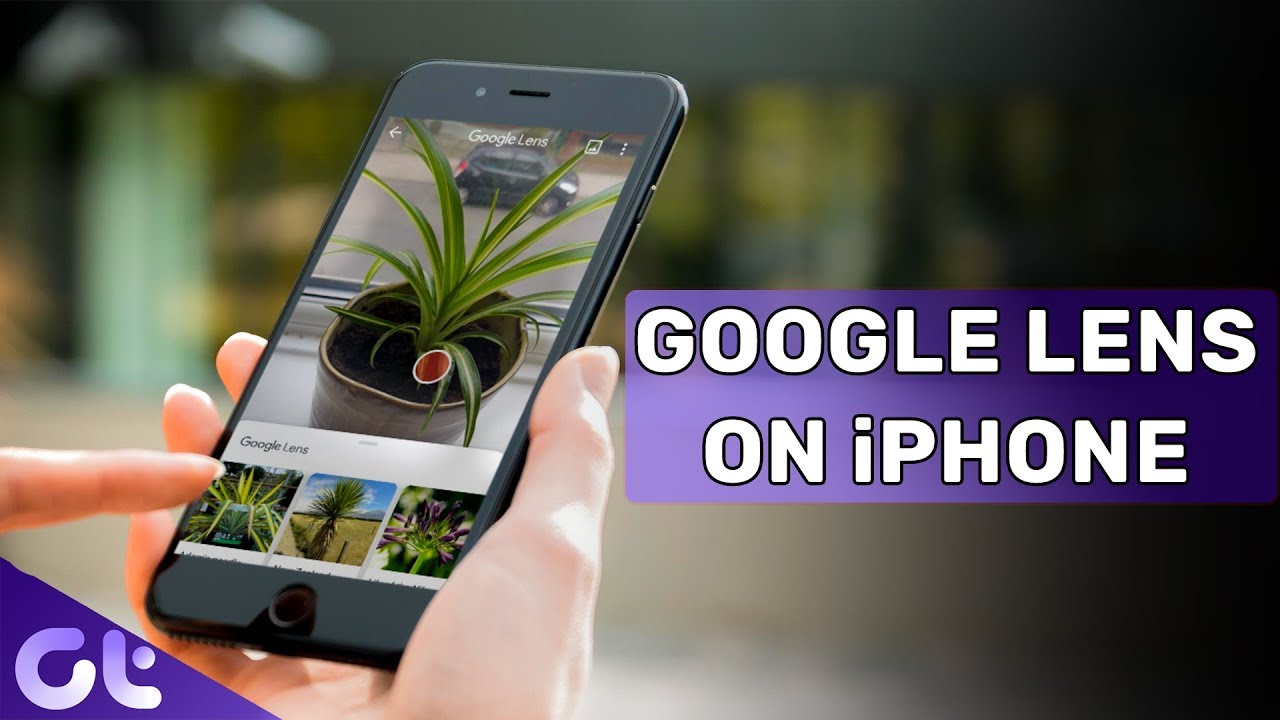
In today’s digital world, searching with images is becoming just as common as searching with text. Whether you want to identify a plant, translate a foreign language, copy text from a photo, or find products online, Google Lens for iPhone makes it easy.
Powered by advanced AI image recognition technology, Google Lens transforms your iPhone camera into a powerful visual search tool. Instead of typing queries into a search engine, you can simply point your camera at an object and instantly receive relevant information.
This guide explains everything you need to know about Google Lens iOS, including features, benefits, setup instructions, practical use cases, and expert tips.
Read more:Tim Cook and Hillary Clinton: Technology, Leadership, and Influence
Google Lens for iPhone is an AI-powered visual search technology developed by Google. It allows users to search the web using images captured through their camera or photos stored on their device.
Unlike traditional search engines that rely on keywords, Google Lens analyzes visual information and provides instant results based on what it sees.
With Google Lens iOS, users can:
- Identify objects and landmarks
- Scan text with iPhone
- Translate languages in real time
- Discover products online
- Find similar images
- Solve math problems
- Recognize plants and animals
- Perform reverse image searches
The technology combines machine learning, image recognition, and Google Search to deliver accurate results within seconds.
Read more: How to Remove Virus from Android Phone
Why Use Google Lens on iPhone?
The popularity of image search on iPhone continues to grow because visual search is often faster and more accurate than typing.
Some key advantages include:
Faster Search Experience
Instead of describing an object with words, simply point your camera at it and let Google Lens identify it instantly.
Top Tech Trends 2026: Future Technology Insights
Improved Productivity
You can quickly copy text from documents, business cards, signs, or handwritten notes.
Better Shopping Decisions
Google Lens helps users compare products, find prices, and locate similar items online.
Real-Time Translation
Travelers can instantly translate menus, signs, and documents using their iPhone camera.
Enhanced Learning
Students can identify historical landmarks, plants, animals, artwork, and educational materials with ease.

Google Lens App for iPhone: Key Features
The Google Lens App for iPhone offers several powerful capabilities.
Image Search on iPhone
Search for information using images instead of text queries.
Examples:
- Identify unknown objects
- Find product details
- Discover landmarks
- Explore artwork
Scan Text with iPhone
Google Lens can extract text from:
- Documents
- Books
- Notes
- Business cards
- Screenshots
You can then:
- Copy text
- Translate text
- Search text online
- Save information
AI Image Recognition
Google’s advanced AI recognizes:
- Plants
- Animals
- Buildings
- Products
- Logos
- Food items
This makes Google Lens one of the most accurate AI image recognition tools available.
Translation Feature
Point your camera at foreign-language text and instantly see translations on your screen.
Supported languages include:
- English
- Spanish
- French
- German
- Chinese
- Japanese
- Arabic
- And many more
Reverse Image Search iPhone
Users can perform a reverse image search on iPhone to:
- Find image sources
- Discover visually similar photos
- Verify image authenticity
- Locate product listings
How to Use Google Lens on iPhone
Many users ask, “How to Use Google Lens on iPhone?”
The process is simple.
Method 1: Using the Google App
Step 1: Download the Google App
Visit the App Store and install the Google app.
Step 2: Open the Google App
Launch the application and locate the Google Lens icon.
Step 3: Grant Camera Permissions
Allow camera access when prompted.
Step 4: Point Camera at an Object
Aim your iPhone camera at:
- Products
- Plants
- Animals
- Documents
- Landmarks
Step 5: Tap Search
Google Lens analyzes the image and displays relevant results.
Method 2: Using Google Photos Lens
If you already have photos stored on your device, you can use Google Photos Lens.
La Granja VIP Votar: How to Vote and Support Your Favorite
Step 1: Open Google Photos
Launch the Google Photos application.
Step 2: Select an Image
Choose any image from your gallery.
Step 3: Tap the Lens Icon
Google Lens will analyze the photo.
Step 4: View Results
Receive information, product matches, translations, or search results.
Popular Use Cases of Google Lens iOS
Identify Objects with iPhone
Unsure what something is?
Point Google Lens at:
- Plants
- Insects
- Animals
- Electronics
- Artwork
The app will provide detailed information.
Shopping and Product Discovery
Use Lens to:
- Compare prices
- Find similar products
- Read reviews
- Locate online stores
This makes shopping easier and more informed.
Travel Assistance
Travelers use Google Lens to:
- Translate signs
- Understand menus
- Identify landmarks
- Learn local information
Educational Research
Students can quickly gather information about:
- Historical sites
- Scientific objects
- Books
- Maps
- Artwork
Business Productivity
Professionals use Lens to:
- Capture business card details
- Extract text
- Digitize documents
- Organize information
Tips for Better Results with Google Lens
To maximize accuracy, follow these best practices:
Ensure Good Lighting
Clear images improve recognition accuracy.
Keep Objects in Focus
Avoid blurry photos whenever possible.
Use Multiple Angles
If results are unclear, try different perspectives.
Update Your Apps
Keep Google and Google Photos updated to access the latest Lens features.
Use High-Quality Images
Sharper images generate more accurate search results.
Google Lens vs Traditional Search
| Feature | Google Lens | Traditional Search |
|---|---|---|
| Visual Search | Yes | No |
| Image Recognition | Yes | Limited |
| Object Identification | Yes | No |
| Camera Integration | Yes | No |
| Real-Time Translation | Yes | No |
| Product Discovery | Excellent | Good |
Google Lens offers a faster and more intuitive search experience for many everyday tasks.
FAQs
Is Google Lens Available on iPhone?
Yes. Google Lens is available through the Google app and Google Photos app on iOS devices.
Is Google Lens Free to Use?
Yes. Google Lens is completely free.
Can I Scan Text with iPhone Using Google Lens?
Yes. Lens can extract, copy, translate, and search text from photos and documents.
Does Google Lens Work Offline?
Some features require an internet connection, although certain functions may work with limited offline support.
Can Google Lens Identify Objects with iPhone?
Yes. It can recognize plants, animals, products, landmarks, artwork, and many other objects.
Is Google Lens Safe?
Yes. Google uses secure systems and privacy controls, but users should review Google’s privacy settings for additional control.
The Future of Visual Search
As artificial intelligence continues to evolve, visual search technology is becoming increasingly powerful. Google Lens represents the future of search by allowing users to interact with the world through images rather than text.
Tony Germano Actor: Career, Roles & Achievements
Experts predict that AI-powered visual search will play a major role in:
- E-commerce
- Education
- Travel
- Healthcare
- Digital marketing
- Local business discovery
With continuous improvements in machine learning and image recognition, Google Lens will become even more accurate and useful over time.
Conclusion
Google Lens for iPhone is one of the most powerful visual search tools available today. Whether you want to perform an image search on iPhone, translate text, identify objects, shop smarter, or conduct a reverse image search on iPhone, Google Lens delivers fast and accurate results.
By combining advanced AI image recognition with the convenience of your iPhone camera, Google Lens transforms the way users interact with information. If you haven’t tried it yet, downloading the Google Lens App for iPhone through the Google app or Google Photos is an excellent way to experience the future of visual search.