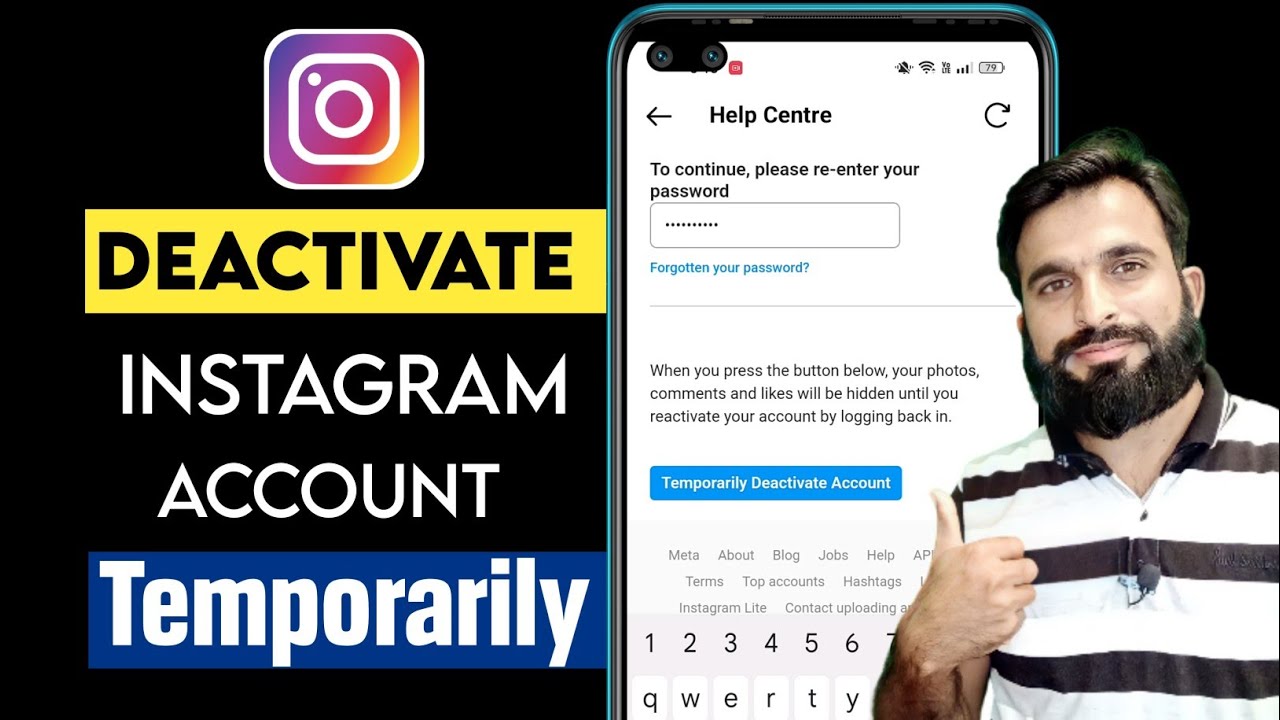
How to Disable Instagram: Complete Guide to Temporarily Deactivate Your Account
Introduction
Social media can be a great way to stay connected, but sometimes users need a break from constant notifications, endless scrolling, or privacy concerns. If you’re looking for a way to step away from Instagram without losing your data, learning How to Disable Instagram is the perfect solution.
Unlike permanently deleting your profile, temporarily disabling Instagram allows you to hide your account while preserving your photos, followers, comments, and messages. This guide explains everything you need to know about how to Disable Instagram Account, including step-by-step instructions for mobile and desktop users.
Whether you’re looking to Temporarily Disable Instagram, reduce screen time, or protect your privacy, this article will help you do it safely and easily.
iPhone 17 Pro Max Orange: Everything You Need to Know About Apple’s Stunning New Color Option
What Does It Mean to Disable Instagram?
When you choose to Deactivate Instagram Account temporarily, your profile becomes hidden from other users until you log back in.
What Happens When You Disable Instagram?
- Your profile becomes invisible to others.
- Your photos, videos, reels, and stories are hidden.
- Followers cannot view your account.
- Likes and comments remain saved.
- Direct messages stay intact.
- You can reactivate your account anytime by logging back in.
What Does Not Happen?
- Your account is not permanently deleted.
- Your content is not removed from Instagram’s servers.
- Your followers are not deleted.
Temporary deactivation is ideal for users who want a break without permanently losing their Instagram presence.
How to Disable Instagram Account on Mobile
Many users search for Disable Instagram on Mobile, Disable Instagram on iPhone, and Disable Instagram on Android. The process is similar for both devices.
How to Disable Instagram on iPhone
Step 1: Open Instagram App
Launch the Instagram app and log in.
Step 2: Go to Your Profile
Tap your profile picture in the bottom-right corner.
Step 3: Open Settings
Tap the menu icon (☰) in the top-right corner.
Step 4: Select Accounts Center
Navigate to:
Settings and Privacy → Accounts Center
Step 5: Personal Details
Tap:
Personal Details → Account Ownership and Control
How to Disable Instagram on Android
The process for Android devices is nearly identical:
- Open Instagram.
- Go to Profile.
- Tap Menu (☰).
- Open Accounts Center.
- Select Personal Details.
- Choose Account Ownership and Control.
- Tap Deactivation or Deletion.
- Select your account.
- Choose Deactivate Account.
- Enter password and confirm.
Visual Guidance Suggestion
For better understanding, include screenshots showing:
- Profile menu
- Accounts Center
- Deactivation page
- Confirmation screen
These visuals help beginners follow the process more easily.
droven.io Best AI Startups in USA
How to Disable Instagram on Desktop
If you prefer using a computer, you can also Disable Instagram Account through a web browser.
Step-by-Step Guide
Step 1
Visit Instagram.com and sign in.
Step 2
Click your profile picture.
Step 3
Go to Settings.
Step 4
Open Accounts Center.
Step 5
Select:
Personal Details → Account Ownership and Control
Step 6
Click Deactivation or Deletion.
Step 7
Choose your Instagram account.
Step 8
Select Deactivate Account.
Step 9
Enter your password.
Step 10
Confirm your decision.
Your account will immediately become hidden from public view.
AI News March 2026: Top Breakthroughs and Trends
Difference Between Disabling and Deleting Instagram
Many users confuse temporary deactivation with permanent deletion. Understanding the difference is important before making a decision.
| Feature | Disable Instagram Account | Delete Instagram Account |
|---|---|---|
| Profile Visibility | Hidden | Removed Permanently |
| Photos & Videos | Preserved | Deleted |
| Followers | Preserved | Lost |
| Comments & Likes | Preserved | Removed |
| Reactivation | Anytime | Limited Recovery Period |
| Data Retention | Kept | Eventually Deleted |
| Best For | Temporary Break | Permanent Exit |
Choose Deactivation If:
- You want a social media break.
- You plan to return later.
- You want to protect your privacy temporarily.
Choose Deletion If:
- You no longer want Instagram.
- You want your data removed permanently.
How to Reactivate Instagram After Disabling
One major advantage of Instagram Account Deactivation is easy reactivation.
Steps to Reactivate
- Open Instagram.
- Enter your username and password.
- Tap Login.
Your profile, posts, followers, comments, and messages will reappear automatically.
Important Note
Instagram may take a few minutes or hours to fully restore account visibility after reactivation.
Common Problems When Trying to Disable Instagram
Sometimes users encounter issues during the deactivation process.
Problem 1: Cannot Find Deactivation Option
Solution
Ensure you’re accessing:
Accounts Center → Account Ownership and Control → Deactivation or Deletion
Instagram frequently updates its interface.
Problem 2: Wrong Password
Solution
Reset your password before attempting deactivation.
Problem 3: Recently Reactivated Account
Solution
Instagram may limit how often accounts can be disabled. Wait a few days before trying again.
Problem 4: App Not Updated
Solution
Update Instagram to the latest version through your device’s app store.
Benefits of Temporarily Disabling Instagram
1. Digital Detox
Taking a break from social media can improve mental well-being and reduce stress.
2. Better Privacy Protection
Temporarily hiding your profile prevents unwanted attention while keeping your content secure.
3. Reduced Screen Time
Many users disable Instagram to limit distractions and improve daily habits.
4. Increased Productivity
Less time scrolling means more time for work, study, fitness, and personal goals.
5. Improved Focus
Stepping away from social media often helps users concentrate on important tasks.
FAQ
How to Disable Instagram without deleting it?
Use the account deactivation feature in Accounts Center. This temporarily hides your profile without removing your content.
Can I disable Instagram from the app?
Yes. Both Android and iPhone users can disable Instagram directly through the Instagram app using Accounts Center settings.
How long can I keep my Instagram account disabled?
There is no strict time limit. Your account can remain disabled until you choose to log back in.
Will my followers know if I disable Instagram?
No notification is sent. Your profile simply becomes unavailable to other users.
Can I reactivate my account anytime?
Yes. Simply log back into Instagram using your username and password to restore your account.
Conclusion
Understanding How to Disable Instagram gives you a simple way to take a break from social media without permanently deleting your account. Whether you want better privacy, a digital detox, reduced screen time, or improved productivity, temporary deactivation offers a flexible solution.
The process to Temporarily Disable Instagram is straightforward on both mobile devices and desktop browsers. Since your photos, followers, comments, and messages remain intact, you can return whenever you’re ready by simply logging back in.
Before making a decision, consider whether you need temporary deactivation or permanent deletion. Choose the option that best fits your personal goals and social media habits.